Running Redot apps on macOS
By default, macOS will run only applications that are signed and notarized.
Depending on the way a macOS app is signed and distributed, the following scenarios are possible:
App is signed, notarized and distributed via App Store
The app should run out of the box, without extra user interaction required.
App is signed, notarized and distributed outside App Store
When you run the app for the first time, the following dialog is displayed:
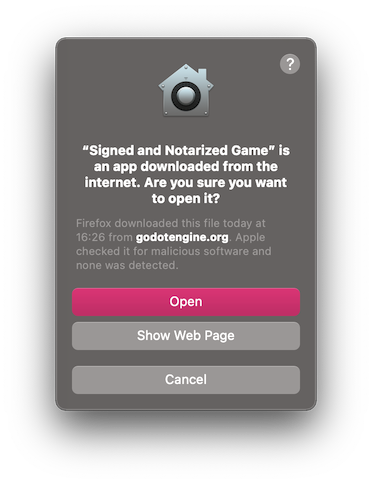
Click Open to start the app.
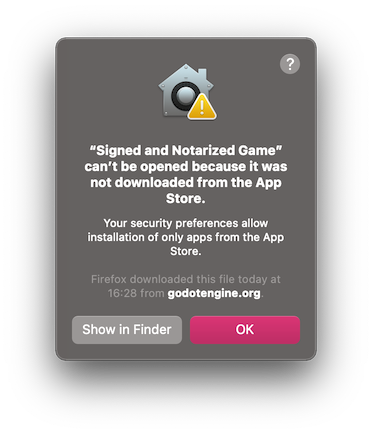
If you see the following warning dialog, your Mac is set up to allow apps only from the App Store.
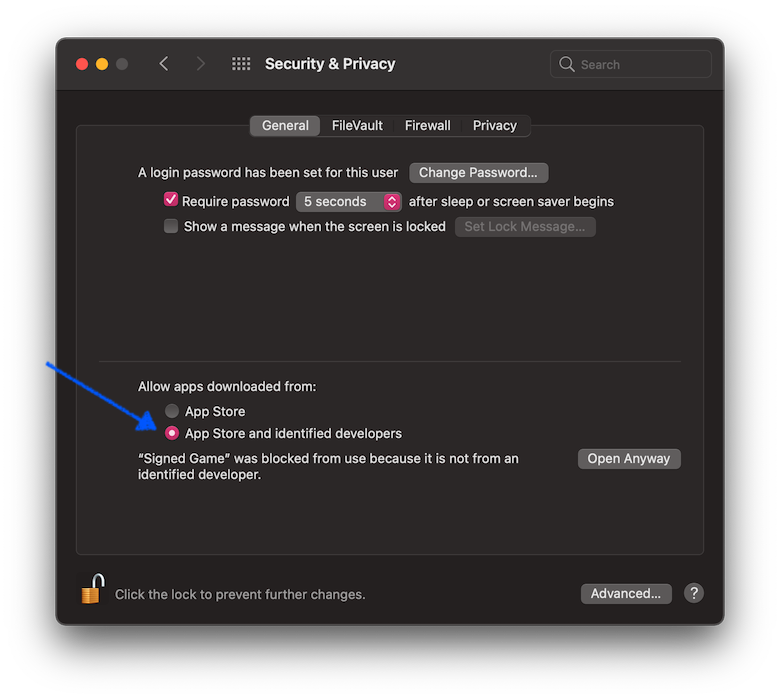
To allow third-party apps, open System Preferences, click Security & Privacy, then click General, unlock settings, and select App Store and identified developers.
App is signed (including ad-hoc signatures) but not notarized
When you run the app for the first time, the following dialog is displayed:
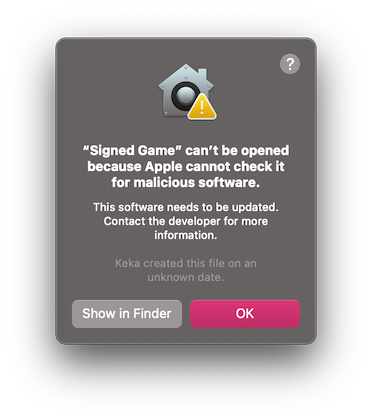
To run this app, you can temporarily override Gatekeeper:
Either open
System Preferences, clickSecurity & Privacy, then clickGeneral, and clickOpen Anyway... image:: img/sys_pref_1.png
Or, right-click (Control-click) on the app icon in the Finder window and select
Openfrom the menu... image:: img/signed_1.png
Then click
Openin the confirmation dialog... image:: img/signed_2.png
Enter your password if you're prompted.
Another option is to disable Gatekeeper entirely. Note that this does decrease
the security of your computer by allowing you to run any software you want.
To do this, run sudo spctl --master-disable in the Terminal, enter your
password, and then the Anywhere option will be available:
.. image:: img/macos_allow_from_anywhere.png
Note that Gatekeeper will re-enable itself when macOS updates.
App is not signed, executable is linker-signed
When you run the app for the first time, the following dialog is displayed:
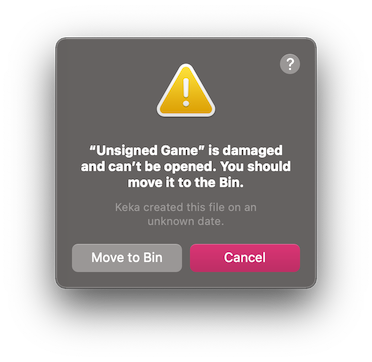
To run this app, you should remove the quarantine extended file attribute manually:
Open
Terminal.app(pressCmd + Spaceand enterTerminal).Navigate to the folder containing the target application.
Use the
cd path_to_the_app_foldercommand, e.g.cd ~/Downloads/if it's in theDownloadsfolder.Run the command
xattr -dr com.apple.quarantine "Unsigned Game.app"(including quotation marks and.appextension).
Neither app nor executable is signed (relevant for Apple Silicon Macs only)
When you run the app for the first time, the following dialog is displayed:
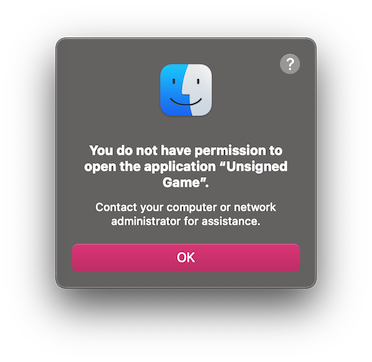
To run this app, you can ad-hoc sign it yourself:
Install
Xcodefor the App Store, start it and confirm command line tools installation.Open
Terminal.app(pressCmd + Spaceand enterTerminal).Navigate to the folder containing the target application.
Use the
cd path_to_the_app_foldercommand, e.g.cd ~/Downloads/if it's in theDownloadsfolder.Run the following commands:
xattr -dr com.apple.quarantine "Unsigned Game.app"(including quotation marks and ".app" extension).codesign -s - --force --deep "Unsigned Game.app"(including quotation marks and ".app" extension).